
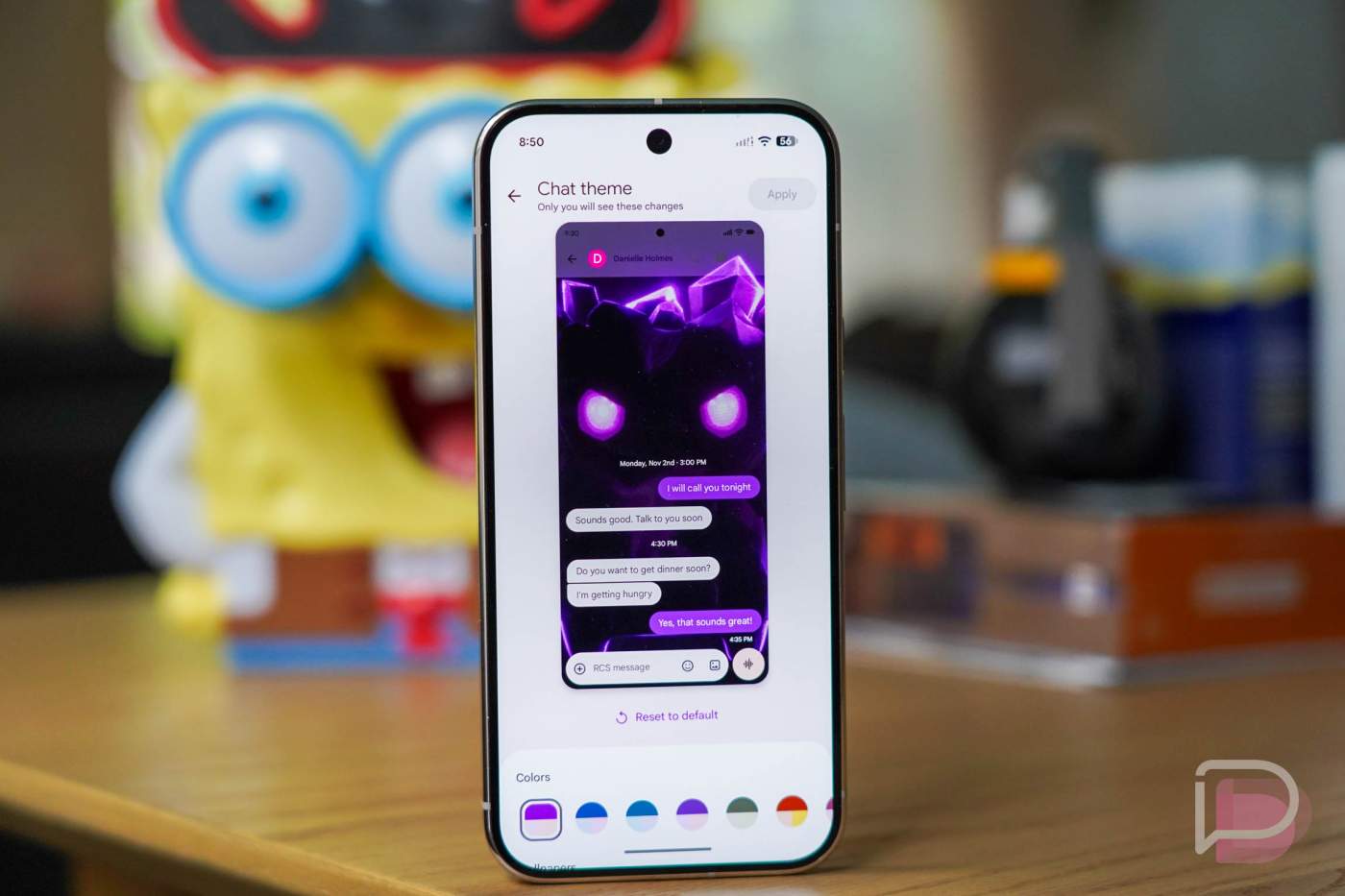

Earlier in the week, a small group of Google Messages users noticed that they were able to set a Chat Theme after weeks of teases and early previews for the feature. Today, Chat Themes in Google Messages appear to be widely rolling out to beta users, once they complete a little trick.
For those who missed Google Messages Chat Themes, this is a highly requested feature from its most vocal users, especially those who used Samsung Messages in the past and were forced to move their chat experience over. The idea here is that beyond just setting a color for your chats, you could set a custom theme with an image background of your own choosing.
Again, this feature was very limited a couple of days ago, but most are now able to get it live as long as they are enrolled in the Google Messages beta program.
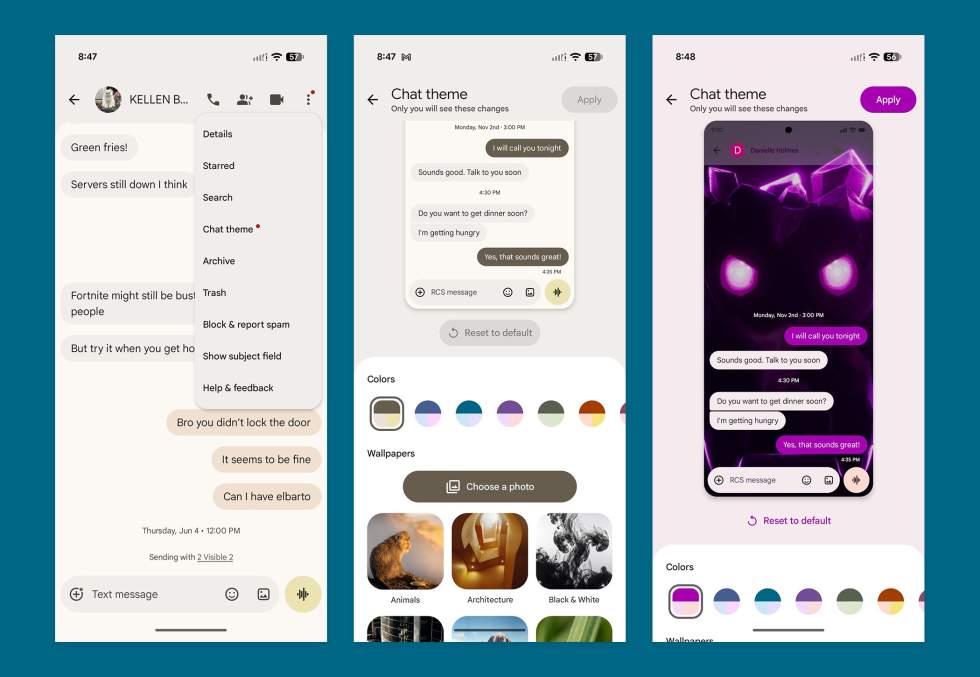
How to use Google Messages Custom Themes:
- To get started, enroll in the Google Messages beta program (here).
- Once enrolled, you’ll head into Google Play and check for an update to the beta.
- Once updated, open Google Messages and then open a message thread/conversation.
- Tap the 3-dot menu in the top right corner and look for “Chat theme.”
- If it’s not there, you’ll need to close the app completely and re-open it.
- Swipe up and hold to open the app switcher, then swipe the app away
- Once re-opened check again for the “Chat theme” option in a thread’s menu
- If there, tap it and then you’ll be inside Chat Theme area where you can choose color, pre-selected images, or “Choose a photo” of your own.
- Pick an image and then “Apply” to set it.
Let us know if you aren’t seeing the option yet.
Google Play Link: Google Messages