
 Kellen
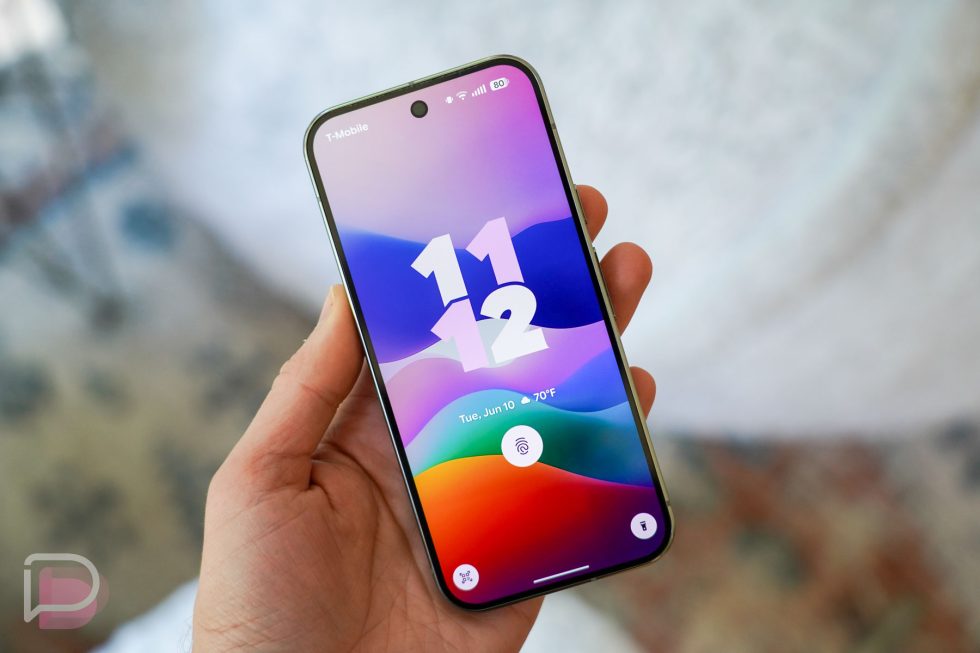
Google may have released Android 16 QPR3 Beta 1 at the worst possible time of the day, but we’re still going to dive into it and share all the big new stuff. As the next quarterly update that will fix a whole bunch of bugs, this also has the potential to be a big feature change for your Pixel phone. Like the QPR2 build that just went stable at the beginning of the month, we’re already finding several new options I think you’ll love.
Let’s dive-in to all that’s new in Android 16 QPR3 Beta.
Turn off At a Glance
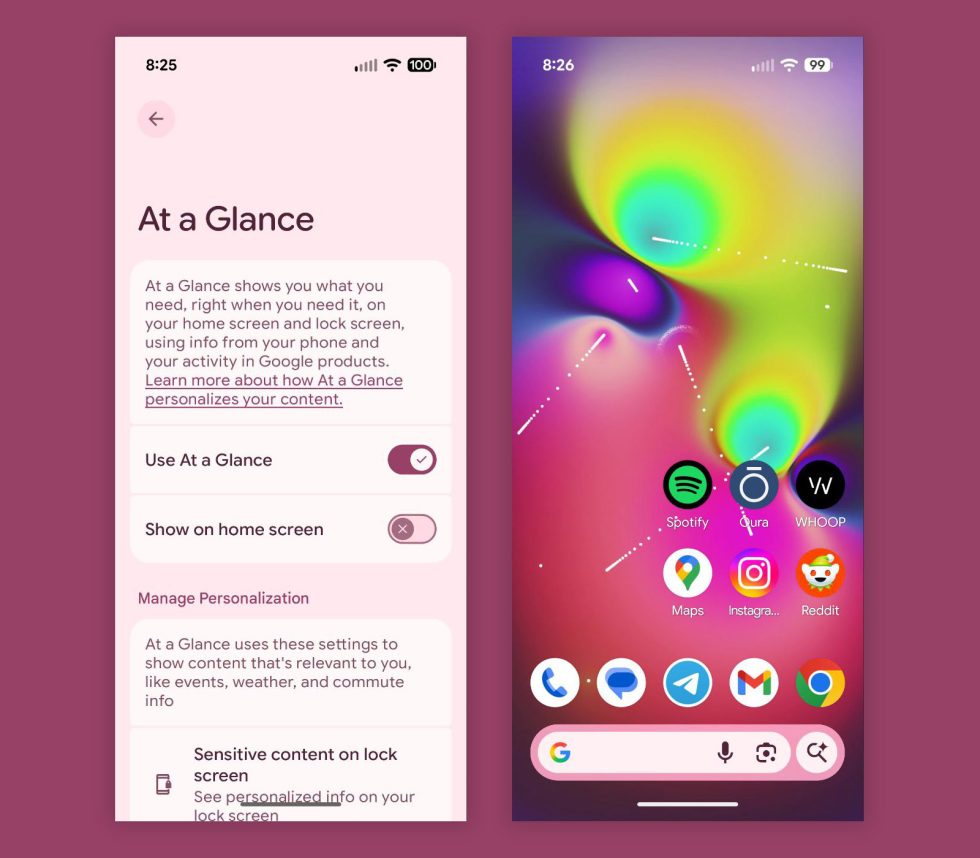
We wrote a post about this change that you’ve likely already seen, but yes, you can now fully turn off At a Glance on your Pixel phone and reclaim that space. Your home screen no longer has At a Glance gobbling up precious real estate that you might have otherwise used for a widget. You can now use your own widget or app shortcuts there or whatever else you can come up with.
To turn it off, long-press on the At a Glance widget, choose Settings, and then toggle off the “Show on home screen.” The option to “Use At a Glance” will control whether or not you leave it active on your lock screen.
Navigation buttons can go the weird Samsung route
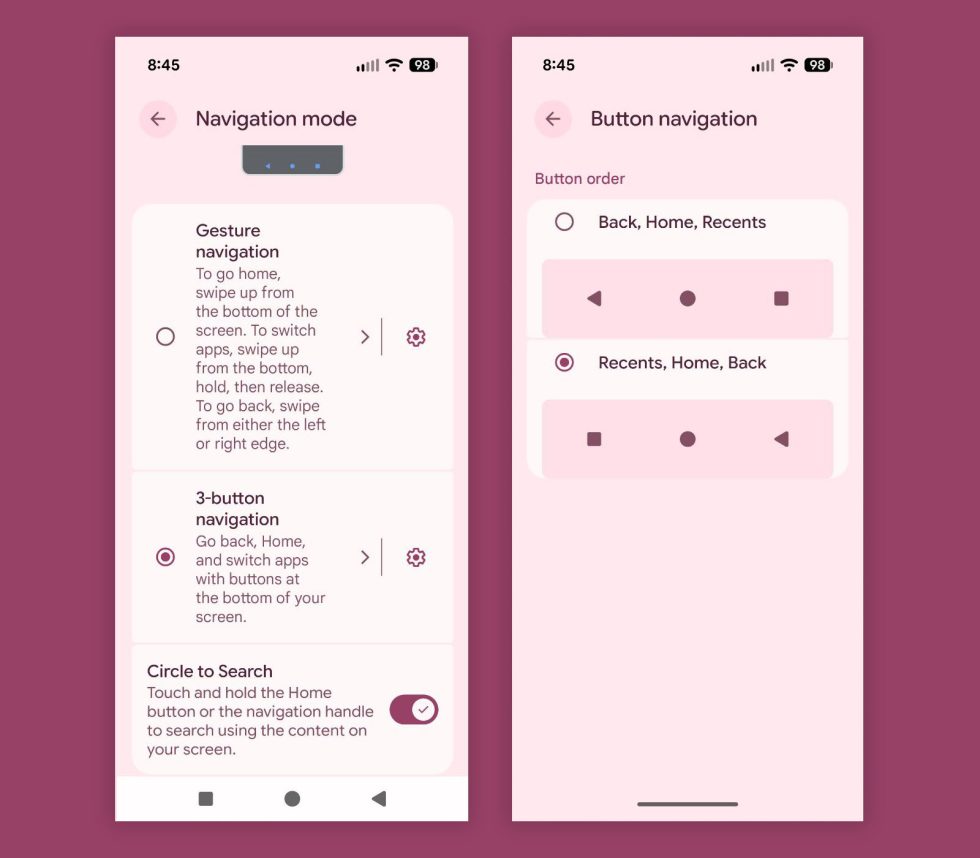
Samsung has almost always given folks the option to switch the arrangement of their 3-button navigation setup, with many preferring the Back button on the right side. Google, for reasons I’m not sure they have ever explained, has refused to allow this and instead only offered a single 3-button arrangement that goes Back-Home-Switcher. In Android 16 QPR3 Beta 1, the 3-button navigation now has an alternative layout that switches the Back and Switcher buttons.
Good job, Samsung.
Flashlight brightness controls
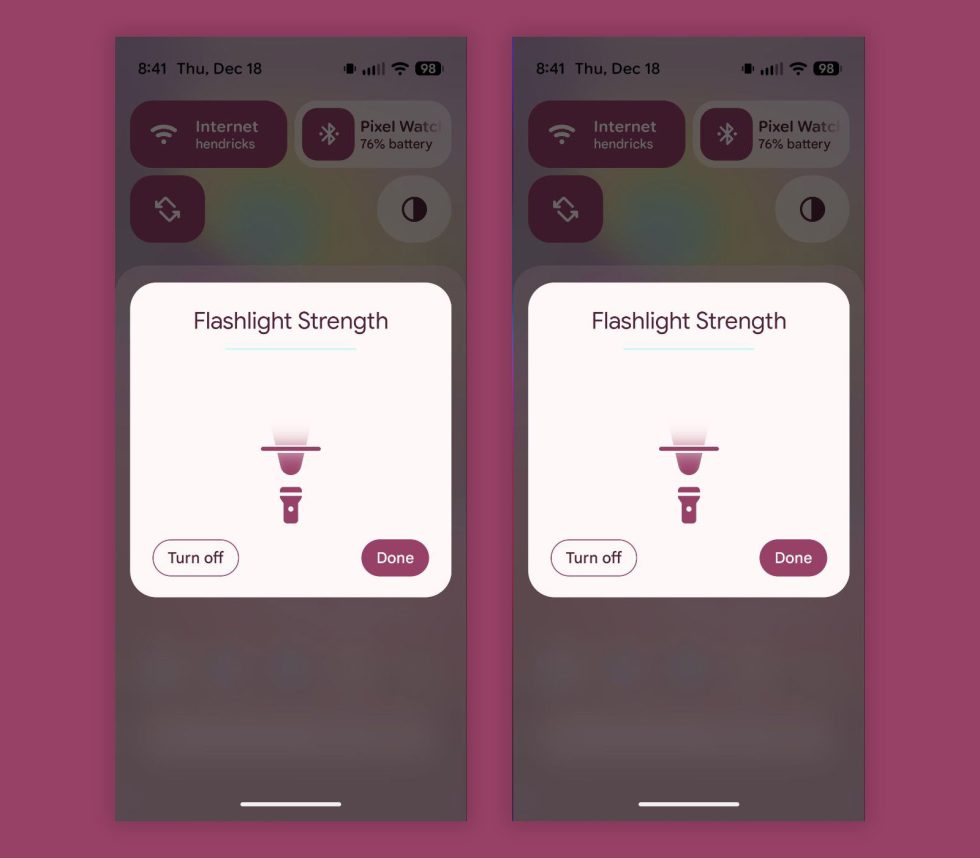
Ever try to adjust the brightness of the flashlight on your Pixel phone and realize you can’t? I know, it sucks. Samsung and Apple both let you do this, but Google has not up until this point. In QPR3 Beta 1, turning on the flashlight from your Quick Settings area pops-up a new screen with a flashlight icon and a slider for brightness. It’s neat and lovely and I’ve already used it a couple of times within the past 12 hours.
Apps accessing location is so obvious now
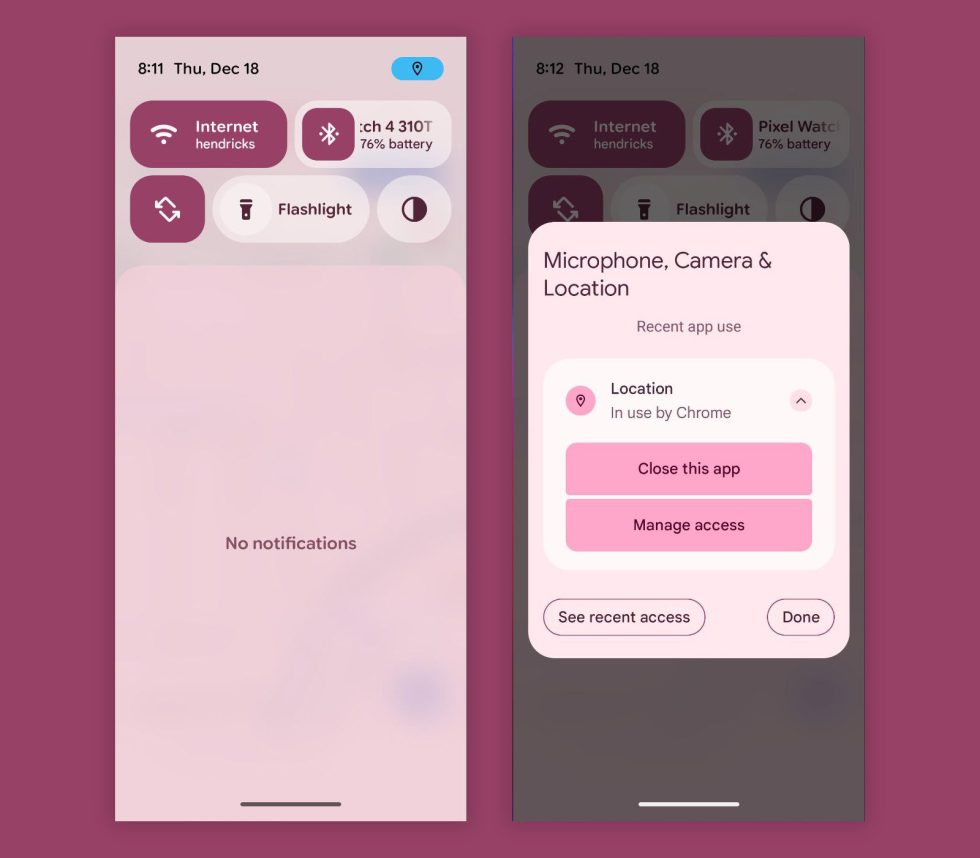
In Android 16 QPR3, if an app accesses your location, a new blue location icon appears in the top right corner of your status bar, next to your battery. If you then swipe down your notification area, you’ll see that the blue icon is actually a location icon that can be pressed. Should you press it, a new pop-up shows exactly which app has just accessed your location. You can then close the app immediately to cut that off or manage its access.
Themed icons become “Minimal,” picker changes things up
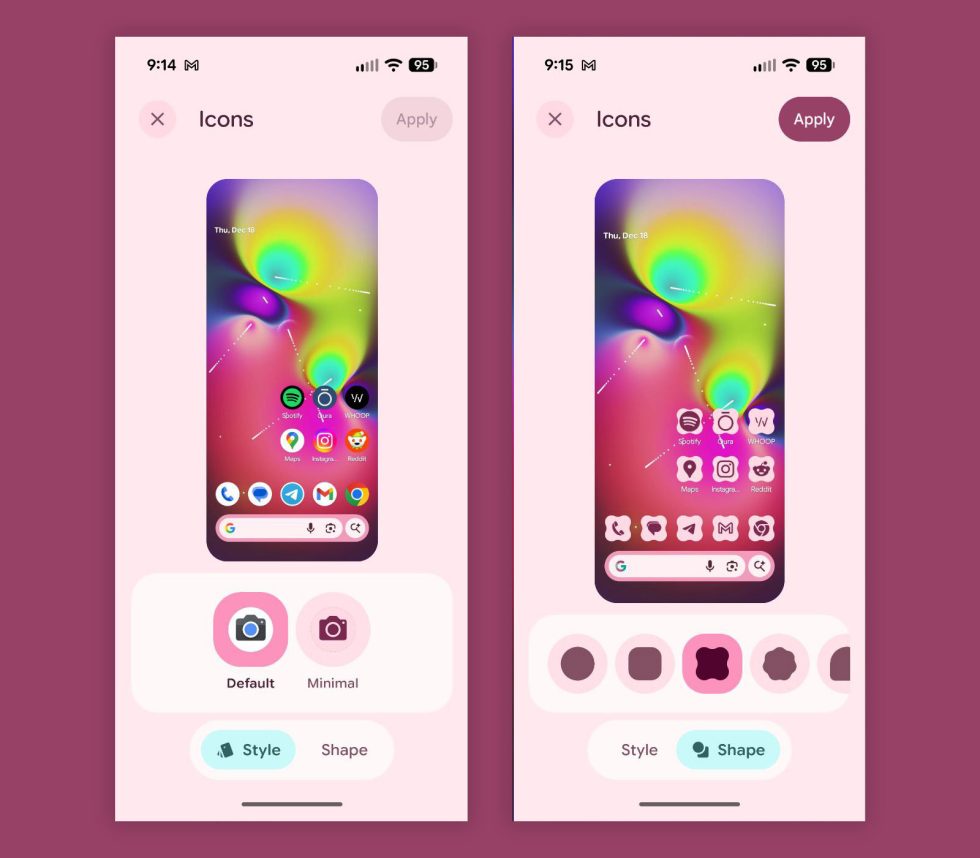
In Android 16 QPR3, Google is bringing its “Themed icons” option out of beta and now just calling it “Minimal.” When you go to choose how you’d like your app icons to appear, you can go with “Default” or “Minimal,” plus choose from a shape list that we got in the QPR2 update.
Folder animation is so much more dramatic
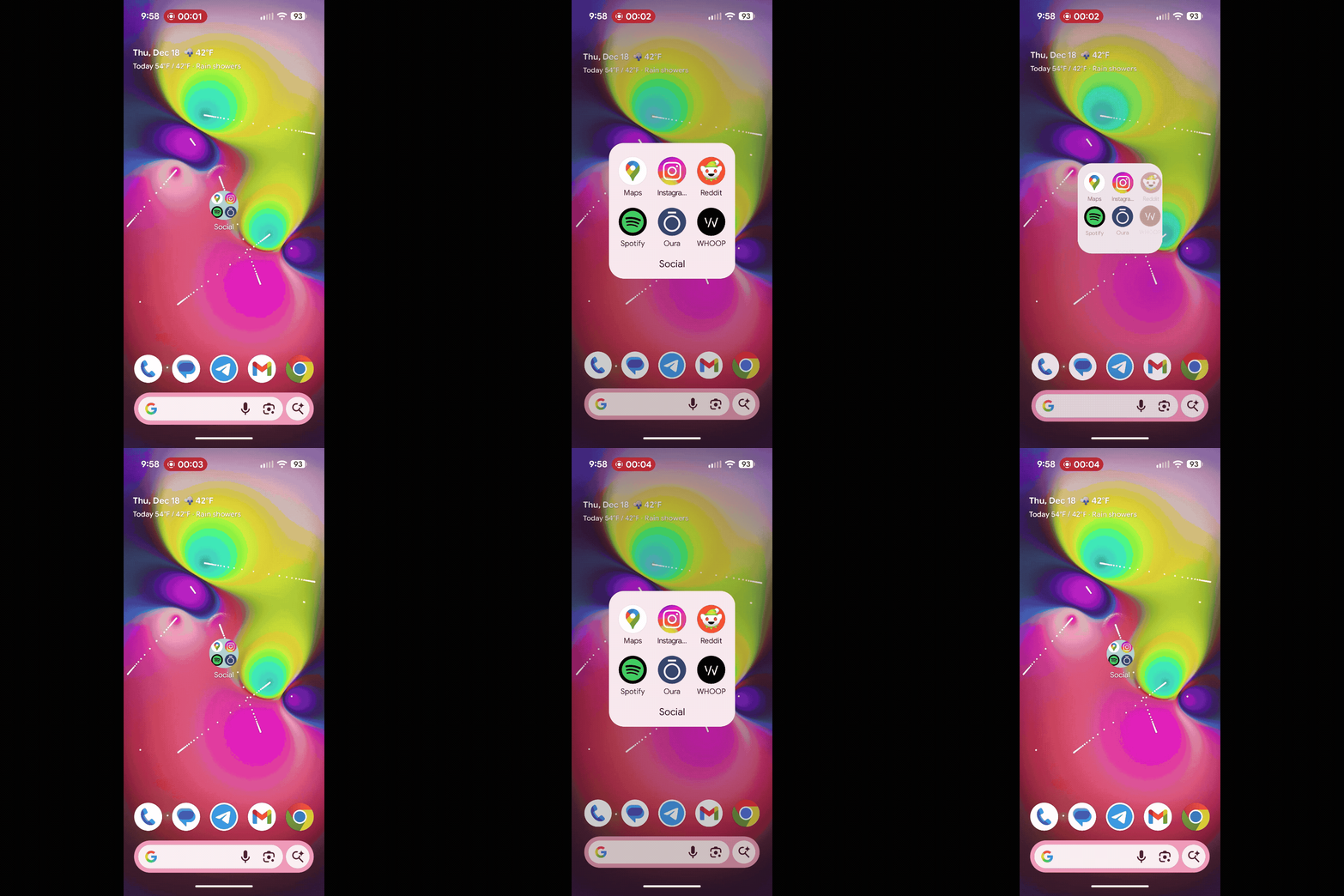
The animation that appears as you open folders on your home screens is now a lot more dramatic and interesting. When you open a folder, the screen zooms out a touch, darkens the brightness on the background, and really puts all of the attention on the open folder. Once you tap out of it, that all shrinks down, zooms out, and brightens in an instant. Pretty neat.
Updating this post!
Collapse Show Comments6 Comments