
 Kellen
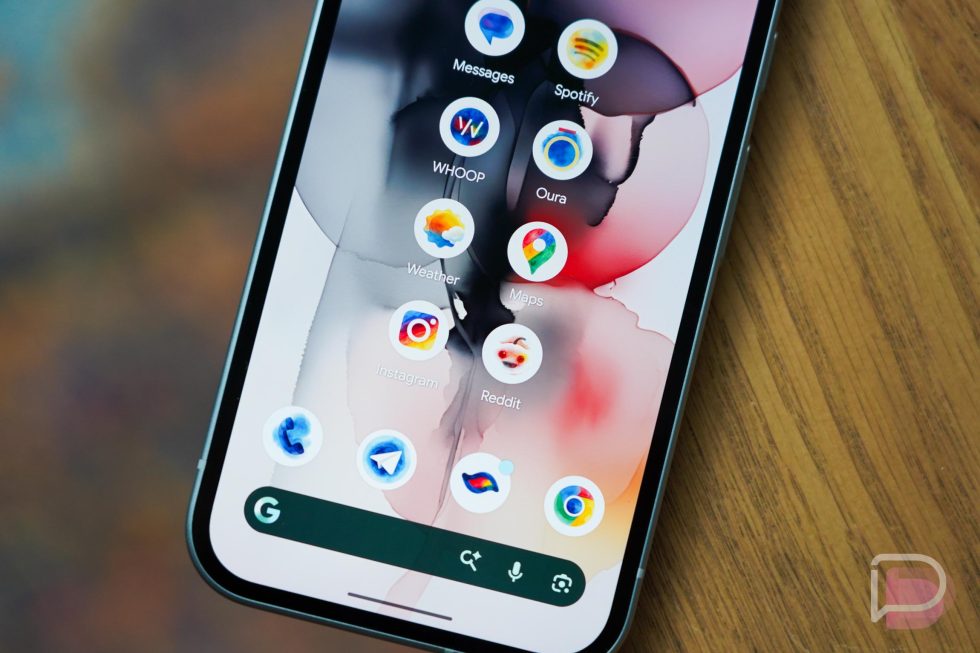
As a part of yesterday’s March Pixel Feature Drop, Google mentioned that it was bringing a new AI-generated custom icons to Pixel phones. They didn’t dive into many details on this new feature or let us know when we could expect to see it or how to get it. Today, it magically appeared on my Pixel 10a through some sort of behind-the-scenes action, as is typically the case with Google stuff.
Now that I’ve had a chance to take a look, let’s dive into the new Pixel custom icons from the March Feature Drop.
Google Pixel Custom AI-Generated Icons
Once live on your phone, you’ll find these new custom AI-generated icons by long-pressing on your home screen and choosing “Wallpaper & style.” From there, you’ll scroll a bit until you see “Icons,” which you’ll tap on. This next page should show an option to “Create” if the feature is live on your Pixel device. Tap on “Create” and let the fun begin.
Google is rolling out custom icons for the Pixel line in their own way. This is not a 3rd party icon pack solution and is instead a pretty limited take on custom icons. Google is kicking things off with 5 options for icons: Scribbles, Cookies, Easel, Treasure, and Stardust. I’d imagine they will expand this over time, but this is the first set out of the gate.
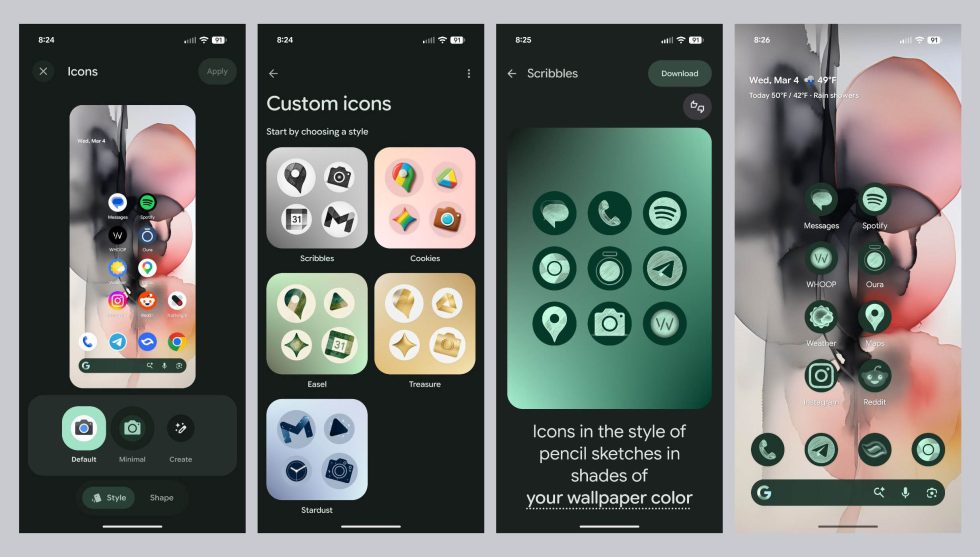
When you tap on an icon style you like, you’ll be taken to a new page that looks like Google’s AI-wallpaper generator. Some icon styles will let you customize colors or shades. For example, if you choose “Scribbles,” you can have it pull a color from your wallpaper or you can choose from another set of colors. The same goes for “Treasure,” where you can decide between a light or dark gold. Easel probably has the most color styles to choose from. Cookies and Stardust don’t have additional options.
Once you tell the system to “Create icons,” they’ll create and download to your phone. You’ll find them in a “Your styles” section on that custom icons page. I’ve created several already and all can be chosen. In fact, you login with your Google Account when you get started, which I’m assuming is to help them attach to your account for future use or on other phones.
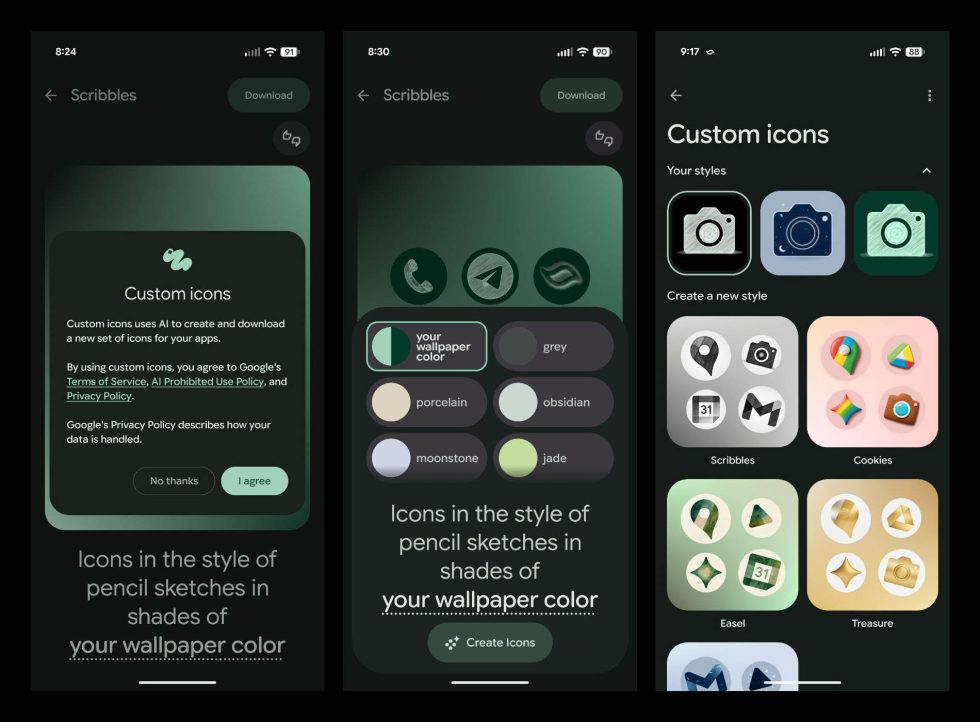
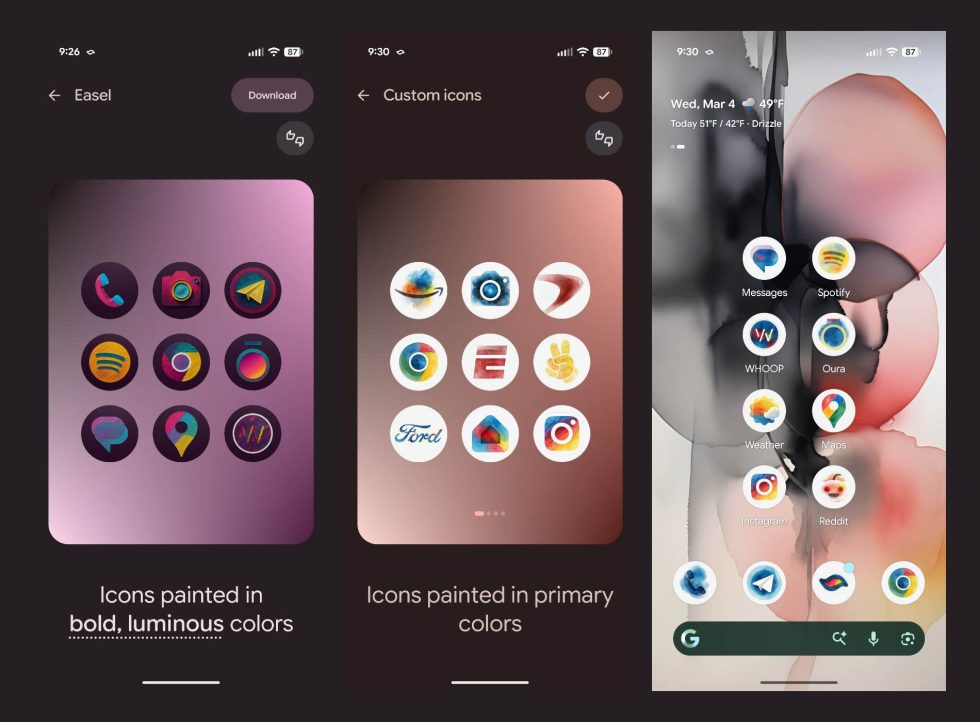
After downloading an icon pack, you can then apply it with a checkmark at the top right corner. Hitting that button will turn all of your home screen icons into that style. Your app drawer icons will remain in their original state. However, if you drag one from the app drawer to your home screen, your Pixel will quickly theme it to match.
Below, I’ve messed with the Easel style and I’ve got to say that it is my favorite by far. The color options for it and the styling are so beautiful and just so happen to fit my current wallpaper quite well.
Google didn’t provide details on which Pixel devices are eligible for these, but they did couple the announcement with the SpongeBob theme pack news. Since that’s available to all Pixel devices sans Pixel Tablet, you should have access at any moment.
Feel free to post any setups you have once you get access!
Collapse Show Comments2 Comments