

The Gemini-ification of all things Google isn’t showing any signs of slowing. Google is all-in on Gemini and a future that is run by AI, even if it destroys lives or the economy. So I get that you might not want to be a part of that and are looking for ways to turn Gemini off in the apps you use.
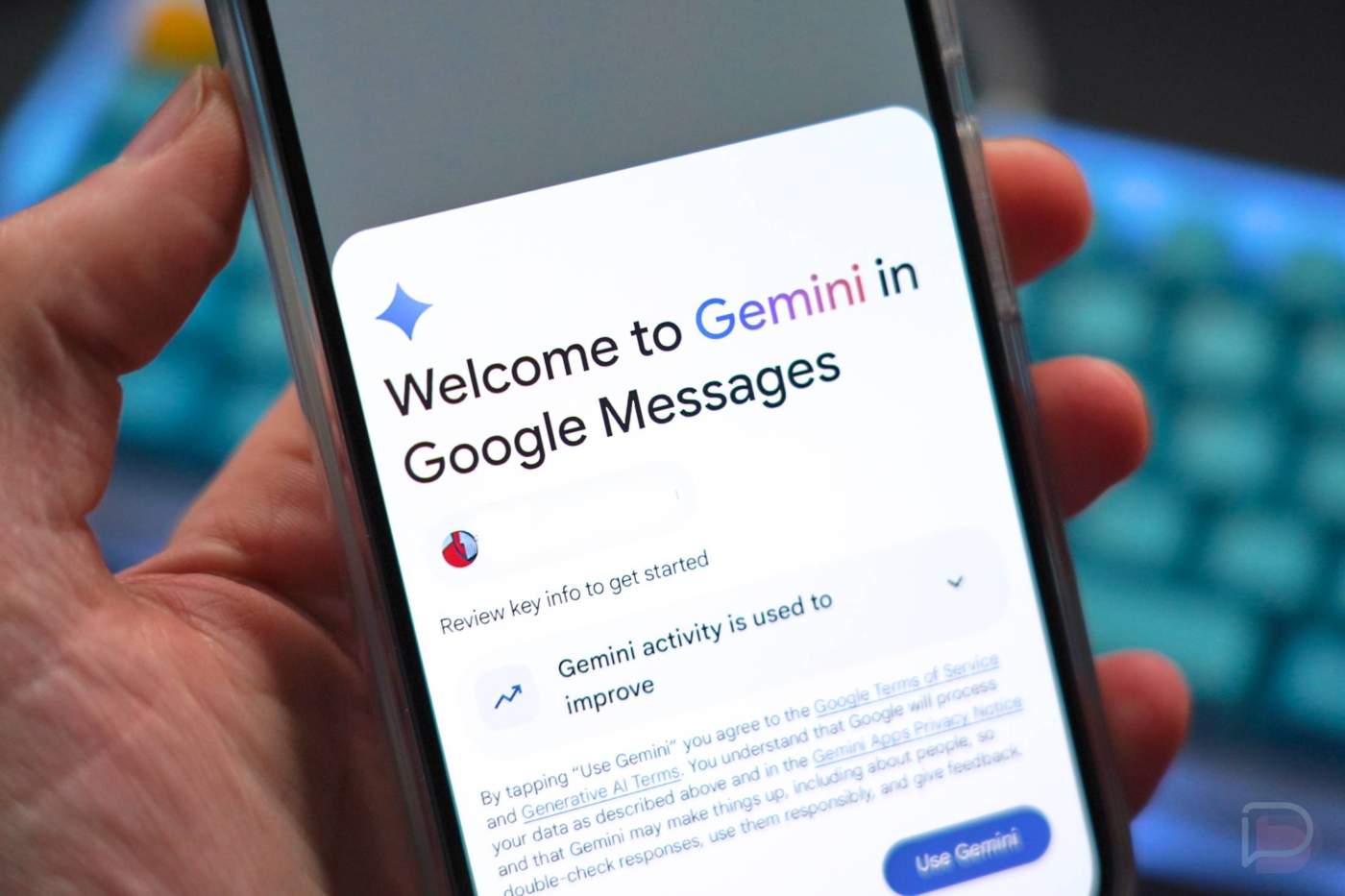
You may have noticed a Gemini button in your Google Messages app and have wondered if you can get rid of it. You can indeed, and it’s super simple to do.
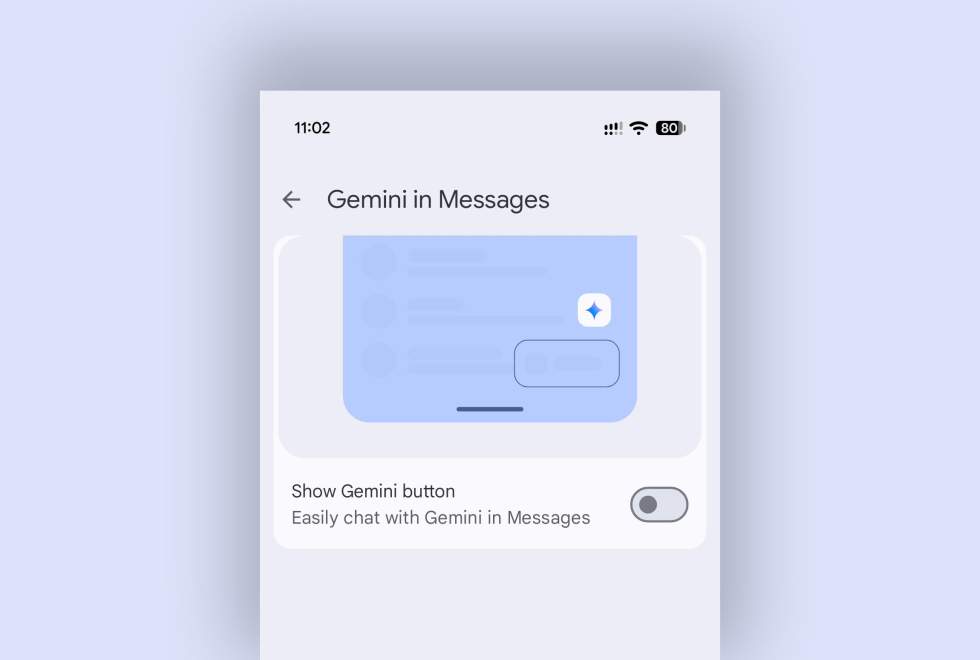
How to turn off Gemini in Google Messages
The floating Gemini button that sits right above your “Start chat” button can disappear with a couple of steps. While Google might turn this on automatically for you, it can be taken away just as quickly.
Here’s how to do it:
- Open Google Messages
- Tap on your profile (top right corner)
- Tap Message Settings
- Tap General
- Find “Gemini in Messages” and tap on it
- Toggle “Show Gemini button” to off
- Done
Now, this is different than the new Gemini integration that Google introduced a week ago that allows you to text or email with Gemini. That new feature is an actual texting experience with Gemini, where it proactively monitors your Gmail and calendar and other services in order to help you stay on top of your life. It’s a bit like an assistant that lives within your Google Messages app.
I’ve been using that in testing for a week or so now and it has some promise. However, it is fully opt-in and it shouldn’t show up in your Google Messages app without enabling it.