

A big update to Google Health arrived this morning for iOS and iPhone users. Google introduced full data syncing between Google Health and Apple Health.
This is a big move for those who might not be a huge fan of the new Google Health app and would prefer to use Apple Health for all of their fitness and health tracking needs. While I (personally) think the Apple Health app is a disaster to use, it’s clear that many prefer it over Google’s option.
So, if you update to Google Health v5.05 on iOS, you’ll be given Sync to Apple Health. This allows you to “Share your data like your exercise records, sleep, vitals, steps, and more from Google Health to Apple Health,” according to the app’s changelog. For those keeping track, this was one of the expected features in Google Health’s roadmap of upcoming changes.
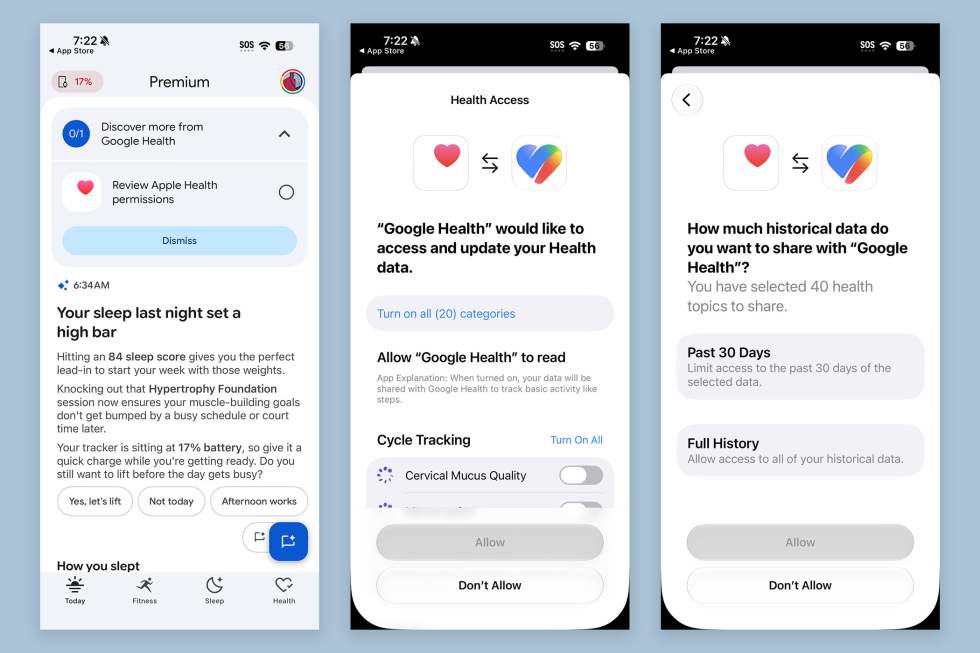
Once updated to v5.05, you’ll see a section on your Today page that tells you to “Discover more from Google Health” and should give you a “Review Apple Health permissions” option. Tapping that will walk you through the new Google Health to Apple Health syncing, where you can choose which categories and individual metrics, plus you can tell it how much data you want to sync (Past 30 Days vs. Full History).
Do note that Heart Rate Variability (HRV) is not included in the syncing. Google Health and Apple Health measure HRV using different formulas and can’t simply just be swapped from one app to another. I’d imagine Google and Apple could figure out a fix to translate these scores between the two platforms, or maybe they don’t want to.
Everything else should be there, at least as far as I can tell for now.
App Store Link: Google Health
UPDATE: Google posted a longer changelog for this update that touches on Apple Health integration as well as Smart Health Links and some other fitness updates. The full list of changes is below.
Apple Health Integration Updates (iOS only)
- You can now share your data from Google Health back to Apple Health. For example, you can sync data like your exercise records, steps, vitals, and sleep recorded by your Fitbit Air to Apple Health.
- To get started, tap on your profile icon, then select “Partner apps”, and then Apple Health. From there, follow the set-up prompts to connect to Apple Health for the first time or tap “Review permissions” to add new permissions. Once you’ve given permissions for Google Health to write data to Apple Health, your data will start to flow. Check out this article to learn more about which data you can share with Apple Health.
Medical Records and Smart Health Links (US only)1
- If you’re in the US, you can now share summaries of your medical records with your healthcare providers or family members using secure Smart Health Links. Your provider may accept Smart Health Links during check-in as a way to supplement your health history.
- To create a link, go to the Health tab and then the “Medical” section. Select “Shareable records” and tap the + button. You can then select which data you want to include and save the link. Once saved, tap the three-dot icon to get a URL or QR code you can share.
Fitness Updates
- We have addressed stability issues with VO2Max calculations, exercise maps, and editing workouts after their completion that may have impacted some users.