
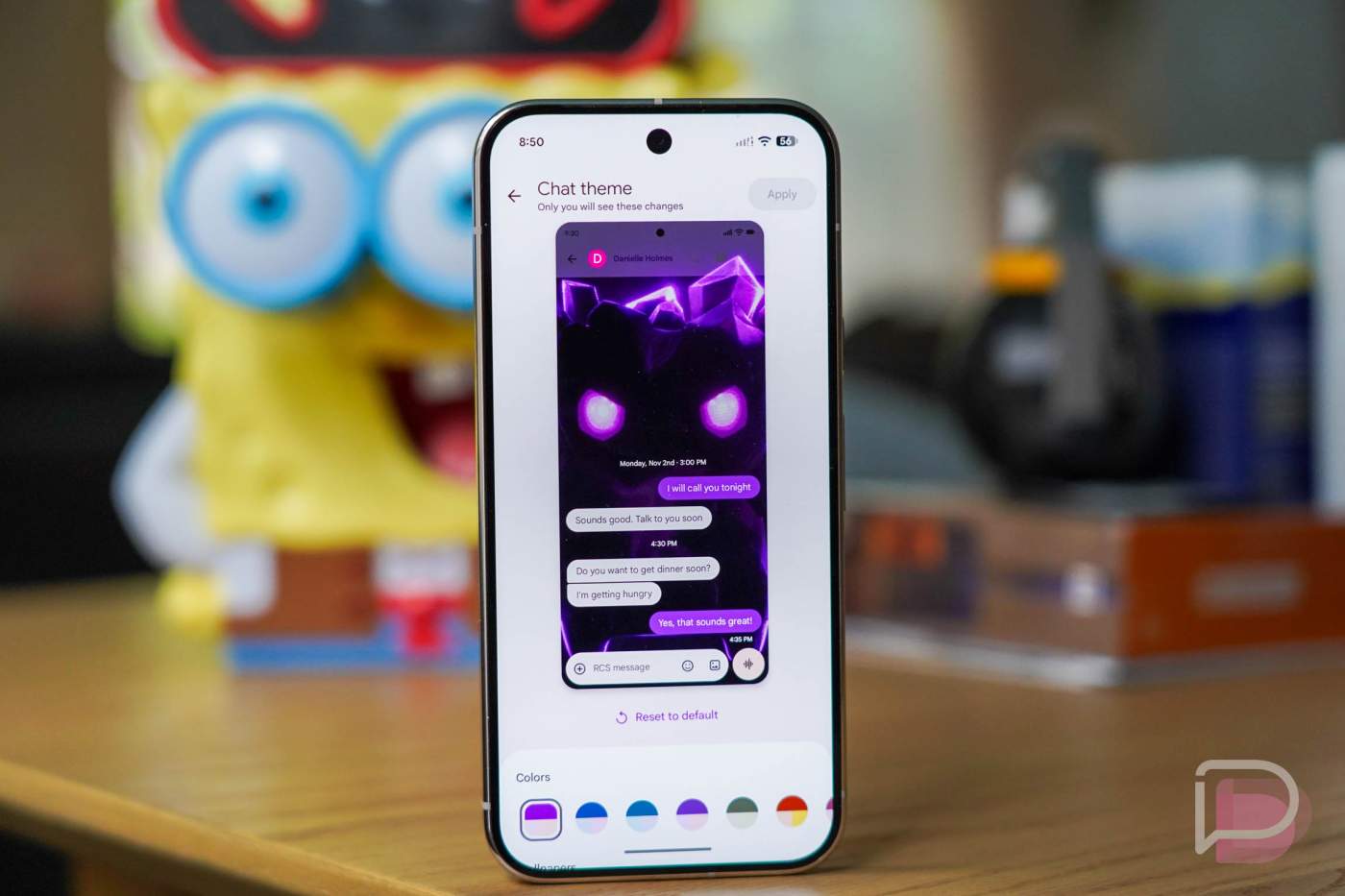

Google certainly took its sweet time in making this official, but we’ve arrived at that moment today. Chat Themes in Google Messages are here!
After rolling these out slowly over the past couple of months, taking them away at times, and then pushing them through again, Google says that Messages really does have Chat Themes now, as long as you use RCS.
In a community post, Google details Google Messages Chat Themes, saying that they bring customizable bubbles and backgrounds to your chats. You can choose your own photos for backgrounds, use curated wallpapers from Google, and then pick a color or let the theme match the background you’ve chosen.
For those worried about the themes showing through to other parties in your chats, that’s not how this works. All of your Chat Theme customizations are only visible to you, on your device.
How to set Google Messages Chat Themes:
- Make sure you are on the latest version of Google Messages (Play Link).
- Open a chat you want to customize.
- Tap the 3-dot menu in the top right corner and look for “Chat theme.”
- If it’s not there, you’ll need to close the app completely and re-open it.
- Swipe up and hold to open the app switcher, then swipe the app away.
- Once re-opened check again for the “Chat theme” option in a thread’s menu.
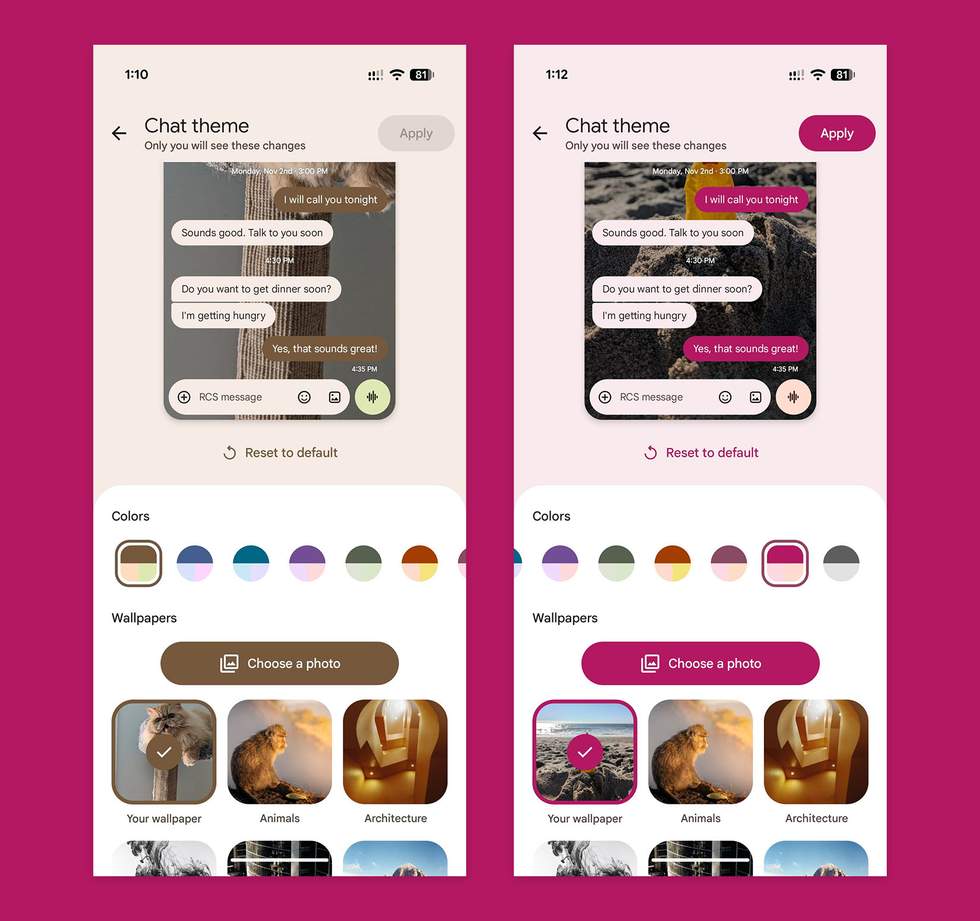
- If there, tap it and then you’ll be inside Chat Theme area where you can choose color, pre-selected images, or “Choose a photo” of your own.
- Pick an image and then “Apply” to set it.
If you ever want to reset a chat theme, head back into the “Chat theme” area and hit the “Reset to default” link under the preview of your theme (see below).
Also, this only works if you have RCS turned on.
Everyone has this now, right?