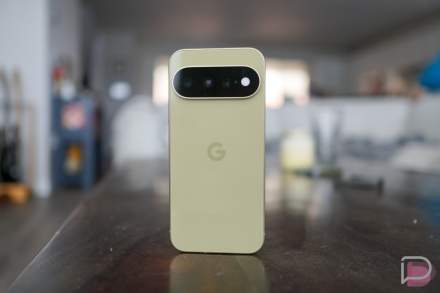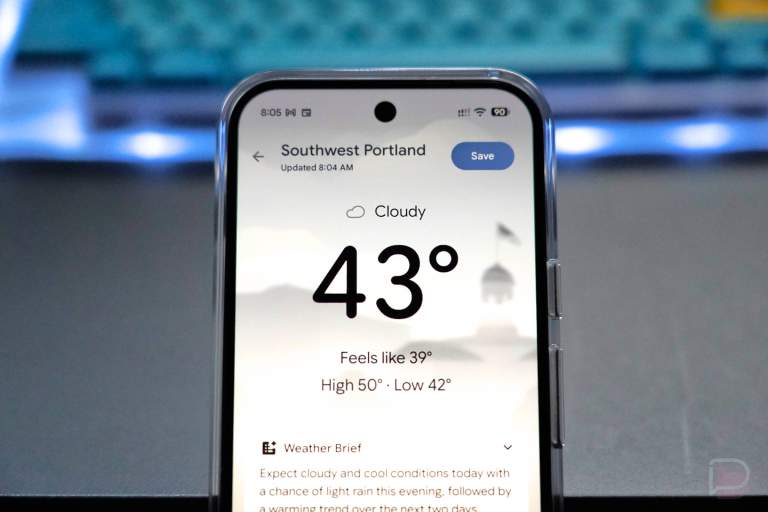

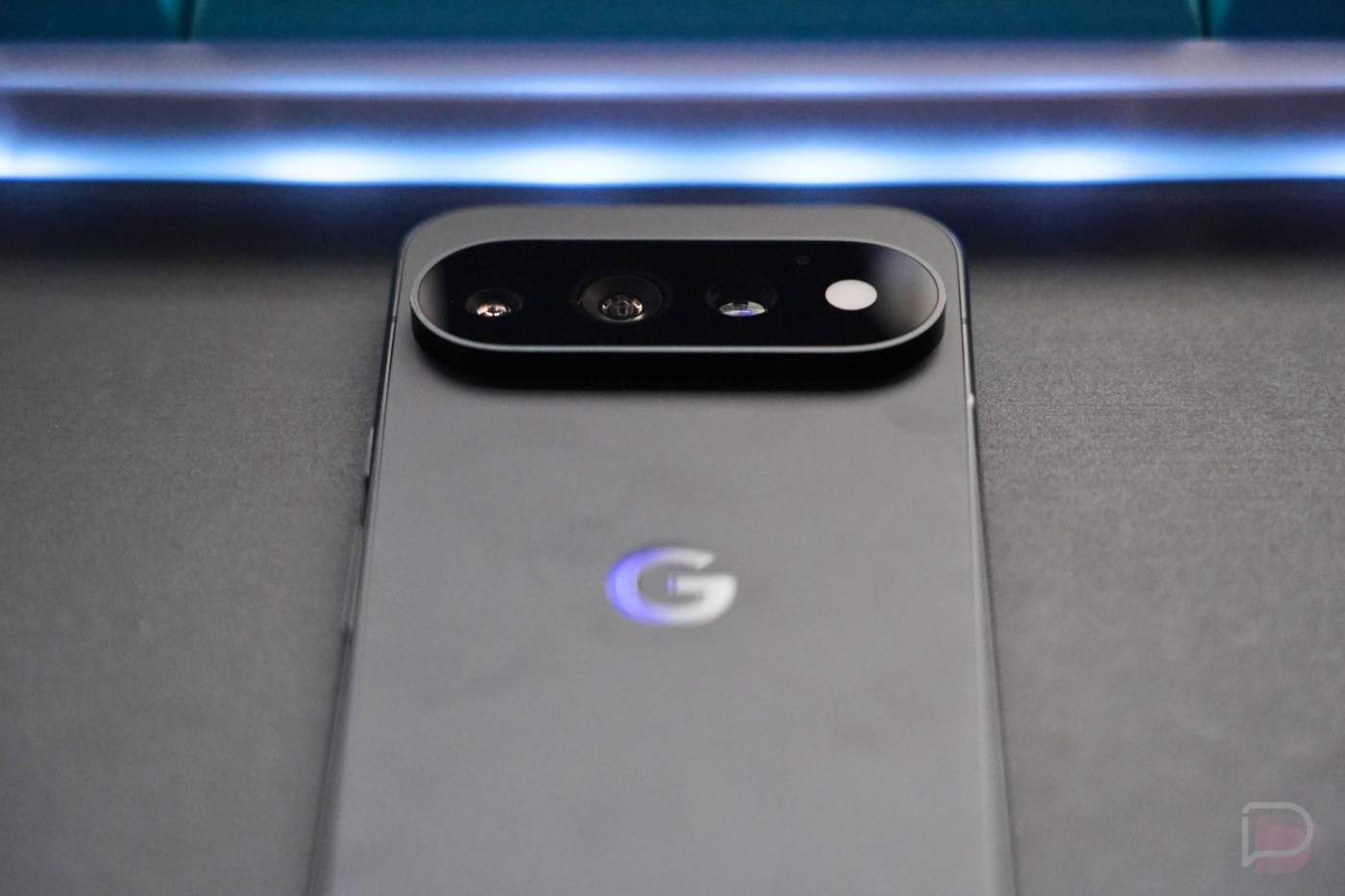

Shortly after reviewing the Pixel 11 Pro and then buying my own personal unit, there were several settings I switched on or adjusted immediately. There are just certain things your Pixel 11 Pro might not have equipped out of the box that you will need to enable to make your life more efficient or pleasant going forward.
To be honest, there are probably more than 4 things I’ve done, but I went ahead and narrowed this down to the settings I think you should do to your new Pixel 11 Pro right away. Because look, there’s a chance you bought one through a Pixel 11 Pro Black Friday deal, right?
Call Screen is a must for everyone
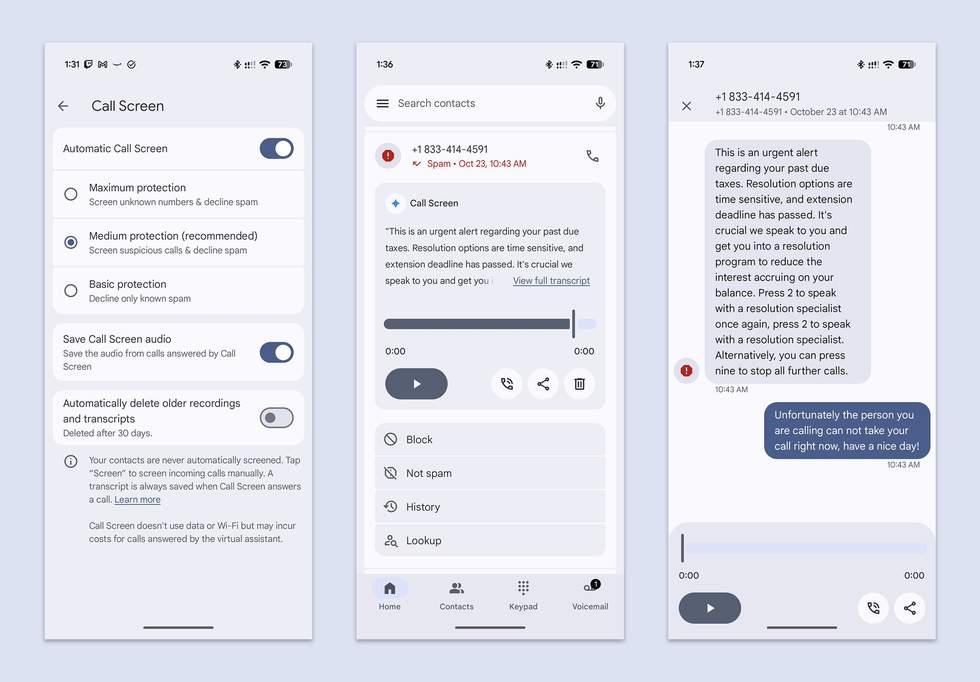
Spam calls are on a new level these days, but Pixel phones have this incredible feature called Call Screen that will attempt to stop most of them by intercepting calls and using AI to get them to explain what they want, all while you sit and read off of your screen what is happening.
It’s so powerful, yet it also feels like you have some power to troll these scammers a little bit. And of course, if it is a real person, you can quickly answer the call if you want.
To turn on Pixel Call Screen, do the following:
- Open the Phone app
- Tap the left side menu and choose Settings
- Tap Call Screen
- Toggle “Automatic Call Screen” to on
From there, you can decide the level of call screening, with options for Maximum, Medium, or Basic protection. The screen you see will explain each level, but I’ve settled on Medium. You can also decide to “Save Call Screen audio,” to be able to hear back what was screened and who Google intercepted and attempted to talk to.
As the calls come in, feel free to tap that “Screen call” button and watch some AI magic happen.
Extreme Charging is here and there’s a shortcut
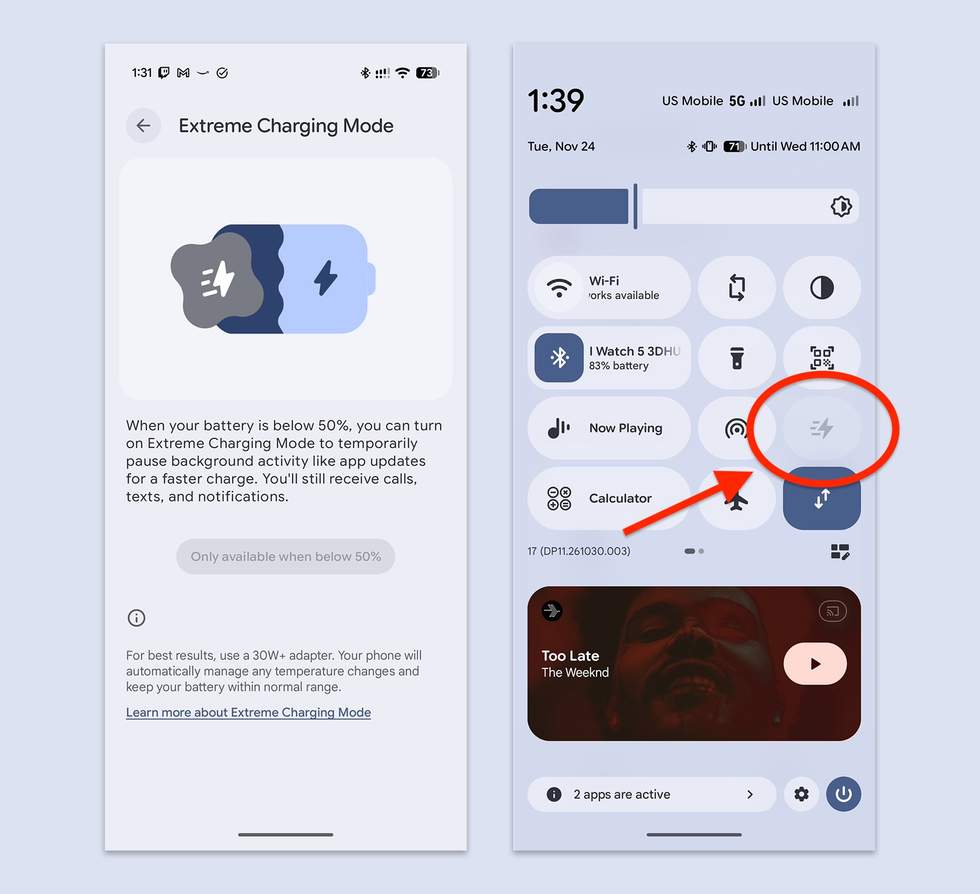
In the Pixel 11 Pro series, Google debuted a new setting called Extreme Charging Mode. This is a charging feature that temporarily pauses background activity as you charge in order to get you more power in a hurry. This only works when you are below 50% charge and you have to manually toggle it on every time you use it.
What I’ve done is add a Quick Settings Shortcut for Extreme Charging Mode to my first few Quick Settings tiles to let me quickly turn it on if my charging state is below 50% and I decided it’s time to plug in.
QR code scanning the quickest way
I feel like I still scan QR codes almost every day, assuming I leave my house. And actually, even at my house I do, since QR codes often let you log in to services, especially those on your TV.
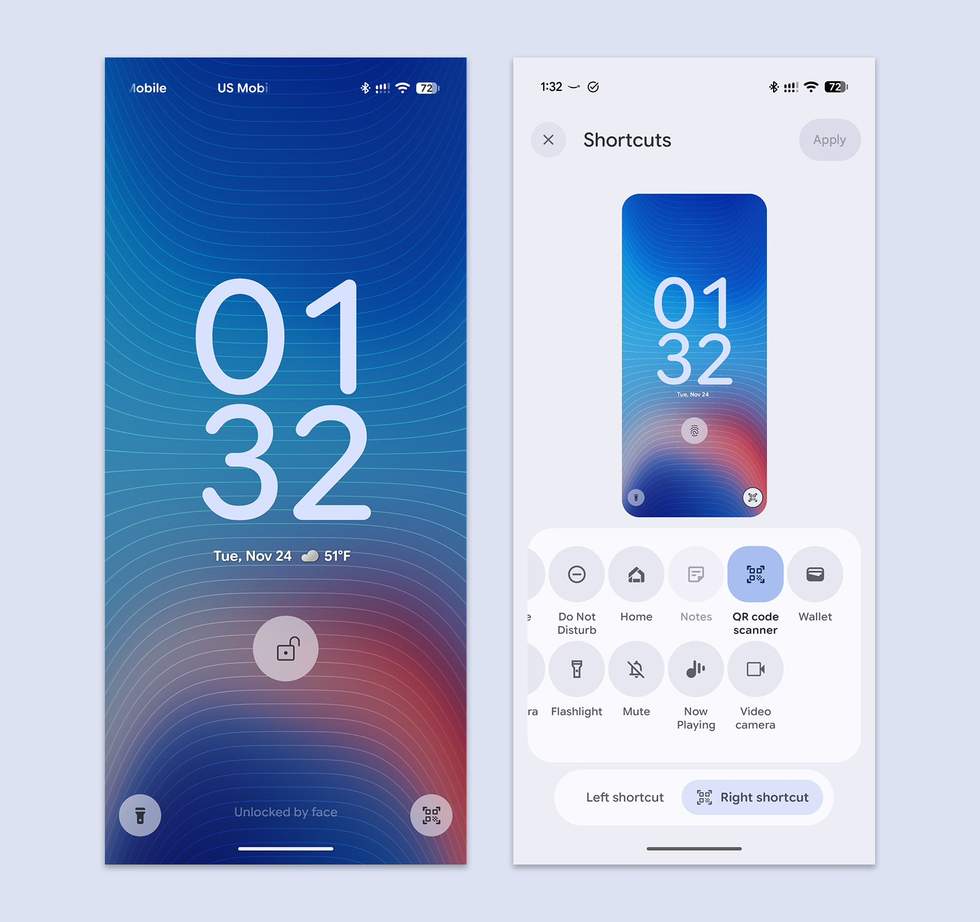
Because I want quick access to the dedicated and built-in QR code scanner on my Pixel, I’ve added it as a shortcut on my lock screen to give me instant access. While I get that the camera app can also scan QR codes, I find the dedicated QR code scanner to be quicker and recognize QR codes with better accuracy.
To add this, you would do the following:
- Long-press on your lock screen
- Choose “Customize lock screen”
- Open up Shortcuts
- Then choose either the left or right shortcut
- Find the QR Code Scanner and select it
- Make sure to hit “Apply” at the top of your screen once done
Swipe up and search, please
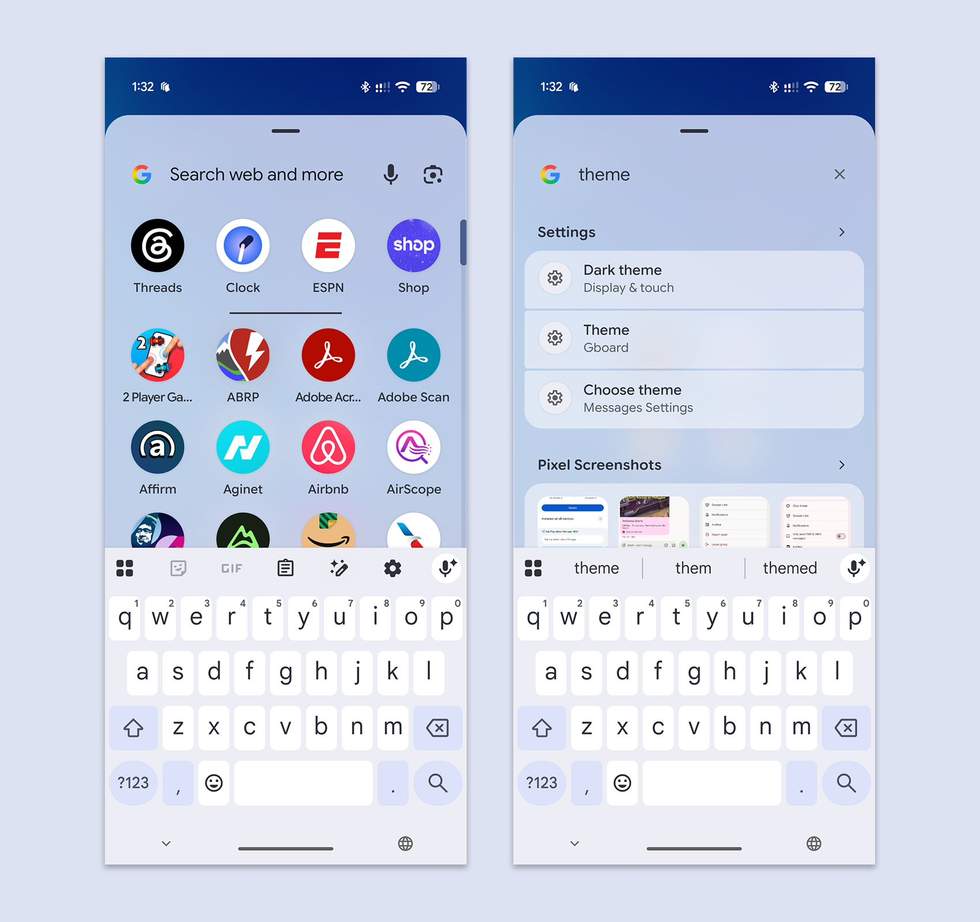
I’ve talked about this on numerous occasions now, so I won’t take too much of your time. However, the home screen setting in the Pixel Launcher to “Always show keyboard” is one of the most powerful changes you’ll make to your phone.
To set this up, do the following:
- Long-press on your home screen and choose “Home settings”
- Tap “App list settings”
- Tap “Pixel search settings”
- Toggle on “Always show keyboard”
Once active, all you have to do is swipe up on your home screen to immediately open both your app drawer and the keyboard. This keyboard is ready for you to type, which uses the phone’s incredibly powerful search to let you find almost anything.
You can find apps, contacts, settings, and search through apps or the web. Just use this as much as you can and I promise your power user status will improve overnight.
Let me know if there are any other settings you think everyone should enable right away.